
Guide2 of 6
Setting up
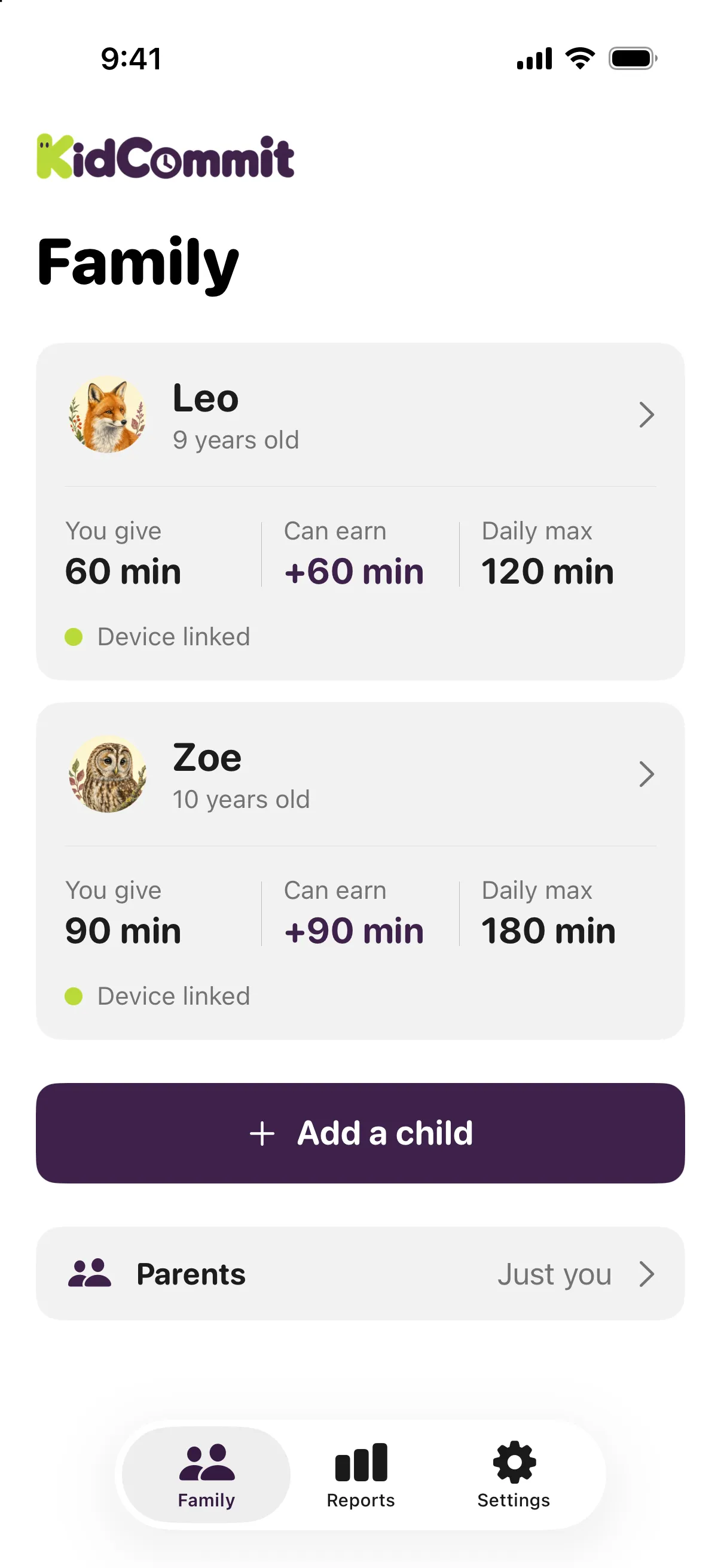
This page covers the setup pieces that have to be in place before KidCommit can run a normal day for your child. It also says what breaks when a piece is missing, because guessing is not a feature.
What you are setting up
KidCommit has two apps. The parent app sets the rules and shows what happened. The child’s app is where the child earns screen time and where limits are enforced.
The parent app and the child’s app both run on iPhone and Android. One subscription per family covers every child, and everything is in English.
Family access and the PIN
A family can have at most two adults; the second one joins with an invitation code. Both parents see everything and both get notifications.
A PIN protects the grown-ups’ section on your child’s phone. Notifications always start with the child’s name, which helps when more than one child is involved and the house is doing its usual impression of an airport.
The family’s time zone is in My details, with a “Use this phone’s time zone” button. In a family with children, a change takes effect from the next midnight that the old and the new time zone share.
The subscription belongs to the Apple ID that pays for it. If that parent leaves the family, the subscription leaves with them; the adults who stay keep what is left of their own free trial.
On a child’s iPhone
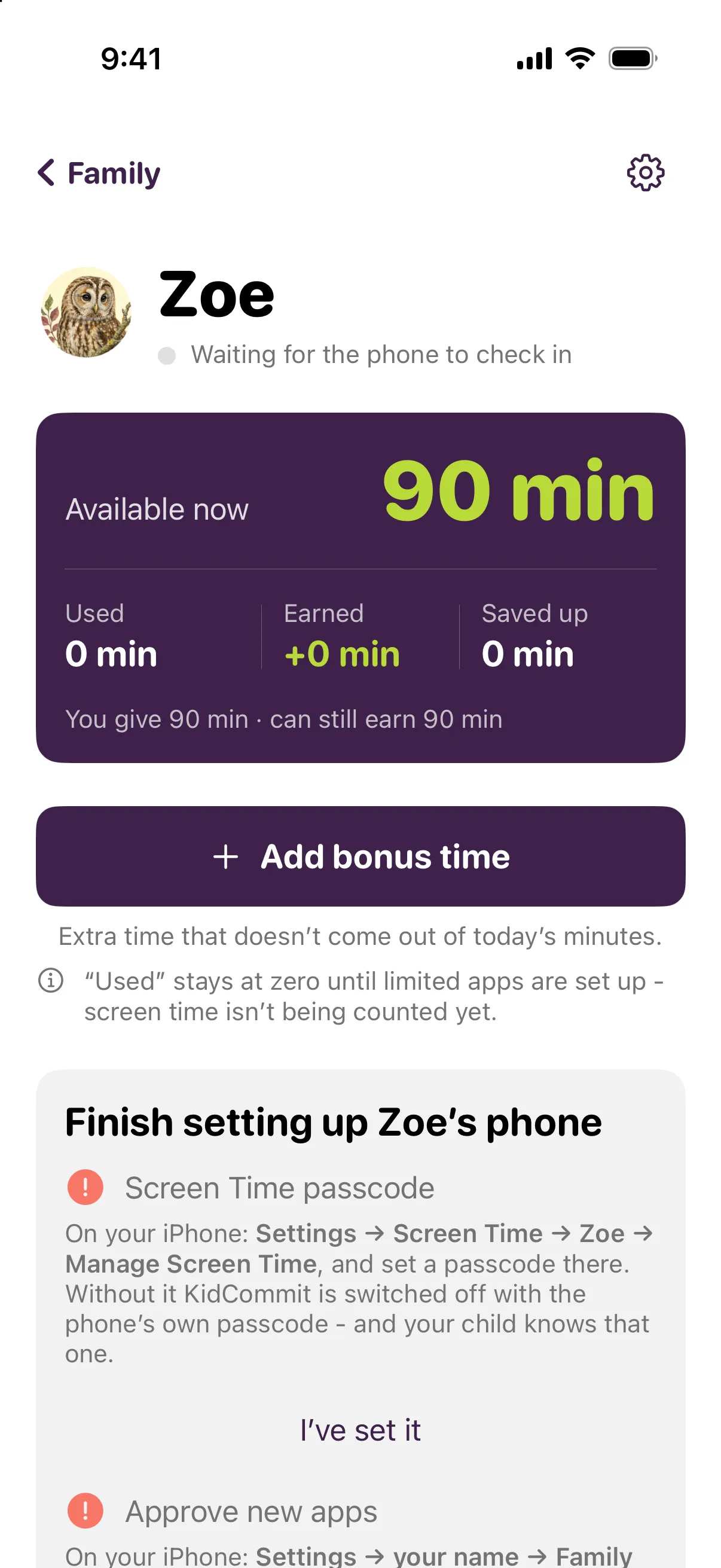
Set a Screen Time passcode on the child’s iPhone. If this is skipped, KidCommit can be switched off with the phone’s own passcode, which the child knows.
Ask to Buy should be on. KidCommit cannot see what your child installs on an iPhone, so Ask to Buy on your Apple account is the way to know about new apps.
On a child’s Android phone
On Android, three switches must be on on the child’s phone. The parent’s app shows what is still missing and marks it in red.
The switches are not decoration. If Screen time counting is switched off, screen time is not being counted yet, and the child’s day can show Used as 0 minutes.
- Blocking apps: accessibility service
- Screen time counting: usage access
- Keeping KidCommit installed: device admin
Choose which apps are limited
You choose which apps are limited. Ticked means limited, and apps that are not ticked stay open. On Android, a newly installed app arrives limited: it spends minutes and closes at bedtime until you untick it in Apps, even if it was installed while the phone was offline.
If limited apps have not been chosen, screen time is not being counted yet and Used can say 0 minutes. On Android, KidCommit reports new apps to you as they appear. On iPhone, KidCommit cannot see what your child installs, so Ask to Buy is the way to know about new apps.
What a working setup looks like
You use the parent app to set the rules, protect the grown-ups’ section on your child’s phone with a PIN, turn on the phone settings KidCommit needs, and tick the apps that should be limited.
After that, KidCommit can enforce limits on the child’s phone and the parent app can show what happened. If something required is still missing, the parent app shows it in red.
- Child
- Age nine
- Child’s phone
- iPhone or Android
- Limited apps
- Ticked means limited
- Missing setup
- Shown in red in the parent app
- If counting is off or no limited apps are chosen
- Used can say 0 minutes
Alerts about the child’s phone
KidCommit tells you by email, and on iPhone also by notification, when something happens to your child’s phone that you should know about. Each alert starts with the child’s name.
Before the “No sign of the phone” alert, a silent iPhone is woken with a quiet push, so a phone that is simply asleep does not raise a false alarm. After a subscription ends, phone alerts stop.
When a free trial ends without a purchase, the app says “Your free trial has ended”, and Settings shows “Free trial ended”.
- “No sign of the phone”: the phone has not checked in for too long
- Protection switched off on the phone
- “KidCommit was removed”: Apple reports that the app was deleted from the child’s phone
- “Wrong PIN on the phone”: five wrong PINs in a row; the lock grows from 15 minutes up to a day
- “Phone disconnected”: the phone was unlinked with the PIN on the child’s phone